Managing Series
This guide covers the actions exposed on series detail pages and the bulk-edit surfaces on library views. It's useful when you need to fix metadata on a large number of series at once, reset a series after a bad metadata write, or look up the raw values backing a series record.
Series detail page
Open any series to see its detail page. The header carries a few entry points beyond the Read and Mark as read buttons:
- An info button (small
iicon) opens the series info modal. - An edit external IDs button (pencil icon) opens the external-ID editor.
- A kebab menu (three dots) collects the destructive and metadata-management actions.
Actions menu
The kebab opens a menu with the per-series management actions.
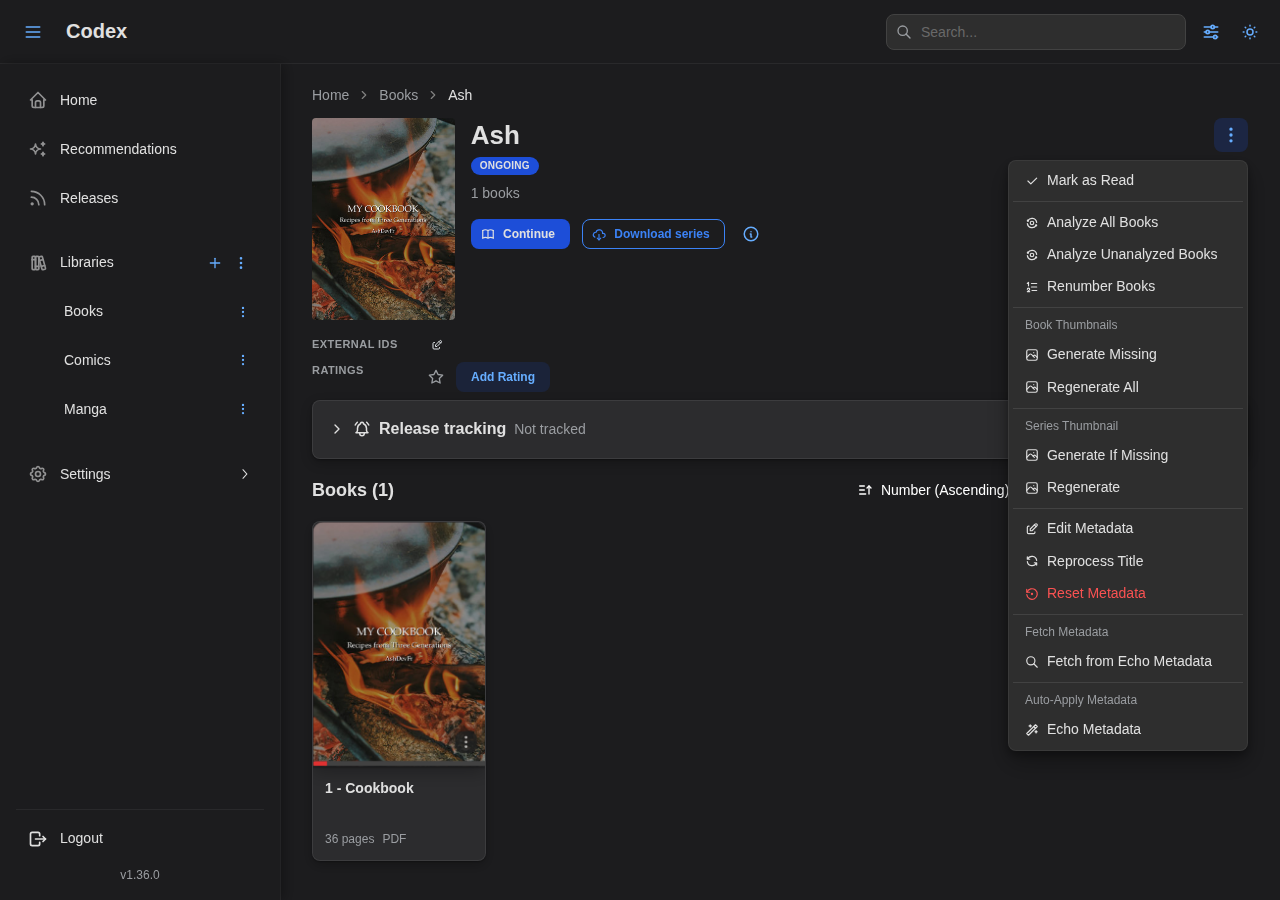
What each item does:
- Edit metadata: open the series metadata modal (see below). The same modal opens when you click any field's edit icon directly.
- Reset metadata: clear all manually-edited fields and revert to the provider/scanner-derived values. Confirmation required (it's destructive).
- Renumber books: re-run the library's number strategy across this series' books. Useful after fixing a filename pattern.
- Reprocess title: re-apply the library's preprocessing rules to the series title. Use this when you've added or changed a rule and want to apply it to existing series.
- Fetch metadata: submenu listing every plugin that can search for this series. See Plugins for plugin-level setup.
- Delete series: soft-delete the series and its books. Files on disk are not touched.
Edit metadata modal
The metadata editor is a tabbed modal organized by field bucket: General, Authors, Tags, Custom Metadata.
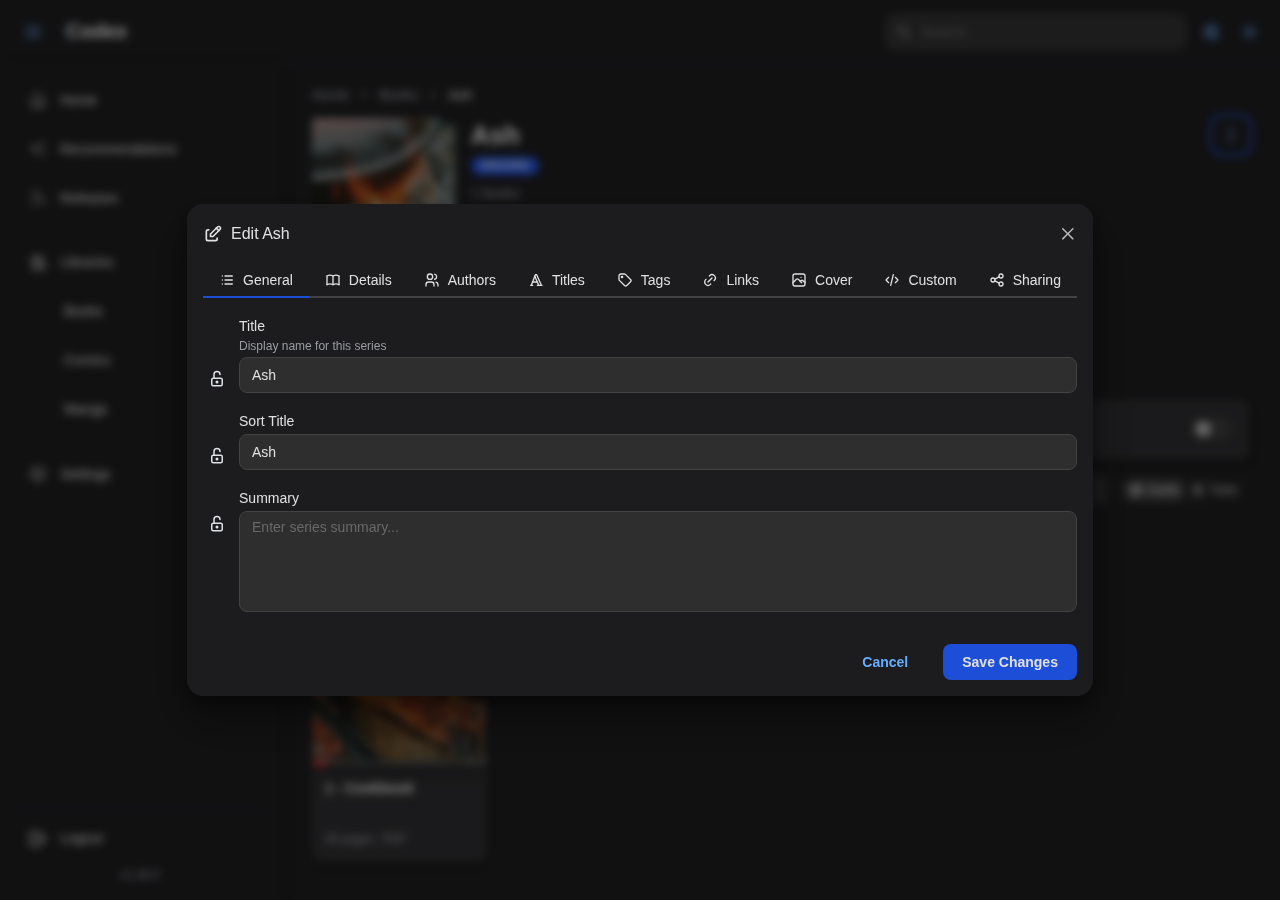
Notable behaviors:
- Each field has a lock icon next to it. Locked fields are protected against future plugin/scanner writes; both library jobs and per-series fetches respect locks.
- The Custom Metadata tab exposes whatever custom-metadata templates the server has configured (see Custom metadata).
- Saving writes only the fields that actually changed; untouched fields keep their existing source attribution (provider, scanner, or user).
Reset metadata
The Reset metadata action wipes manual edits and re-derives values from whatever sources (scanner, provider plugins) are still attached to the series.
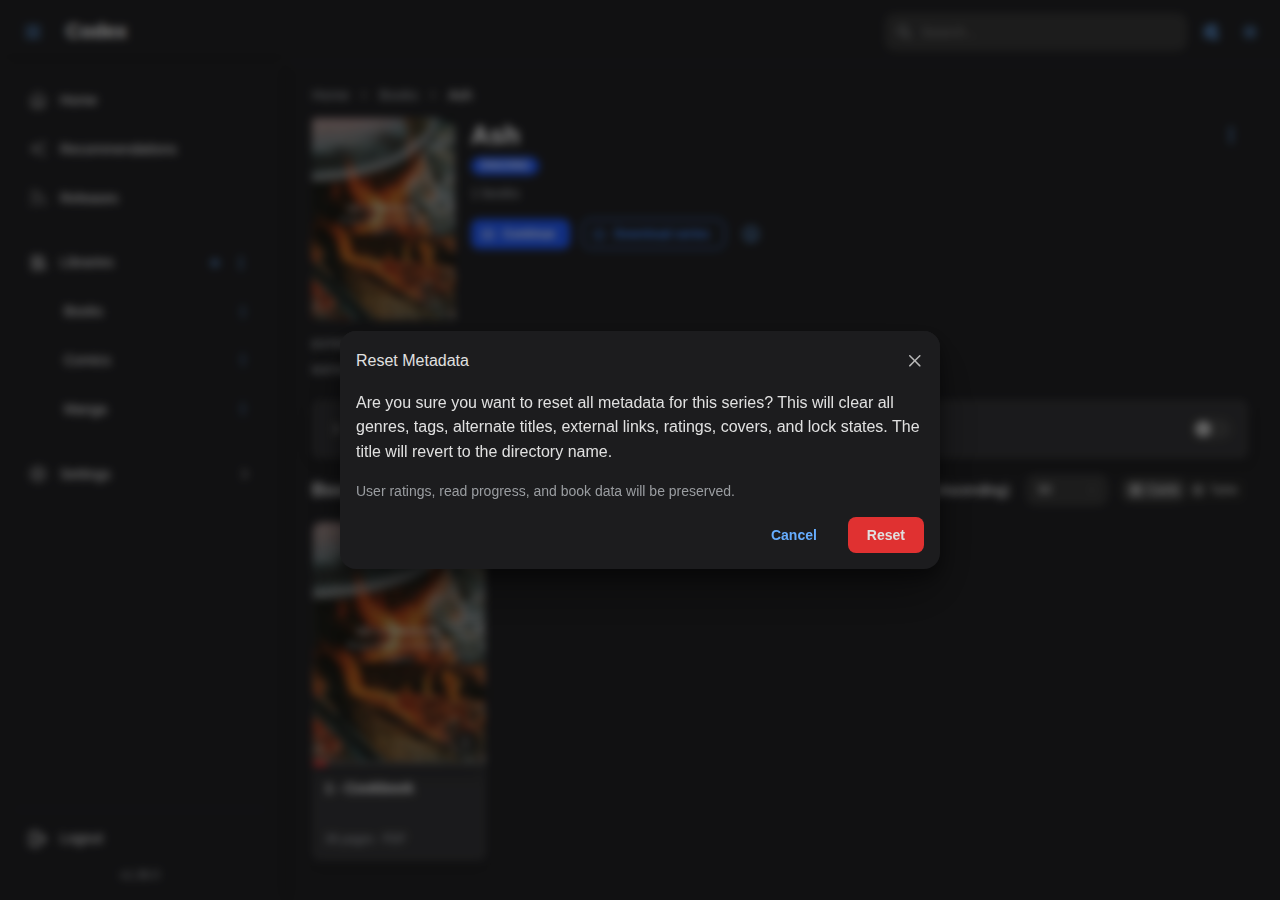
This is the right action when:
- A bad plugin run polluted the series and you want a clean slate.
- You toggled a metadata source off and want the series to forget what that source contributed.
- You want to re-run scanning and metadata as if the series was just discovered.
It does not delete the series, the books, or any reading progress. It only clears editable metadata fields.
Series info modal
The info modal is a read-only dump of every backing value a series has: the canonical title, slug, file path, UUIDs, timestamps, and the resolved external IDs.
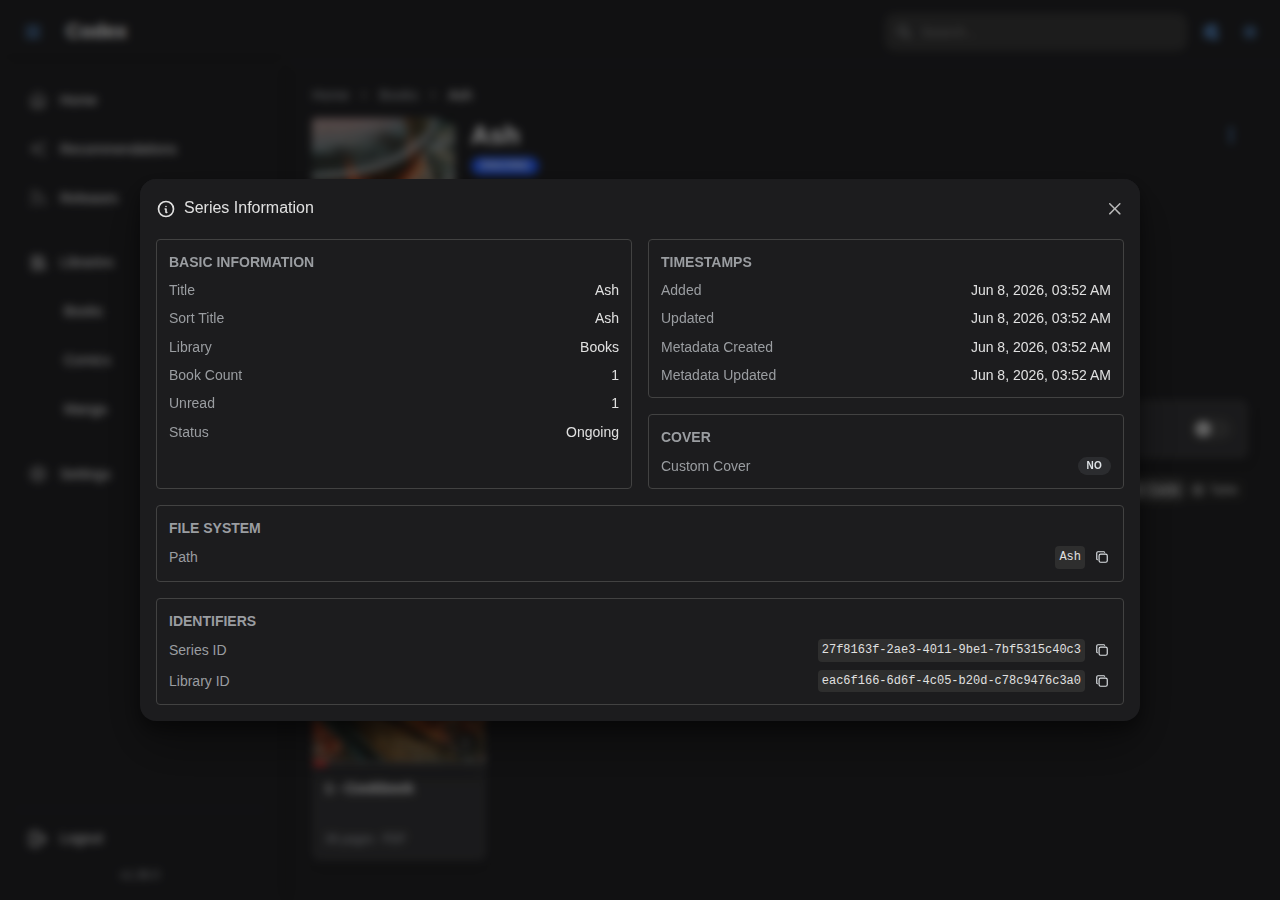
Use this when you need:
- The series UUID for an API call.
- The disk path to verify the scanner picked up the right folder.
- The list of external IDs (and which sources contributed each).
- The exact
created_at/updated_attimestamps for debugging stale data.
Bulk operations on a library
The library page (the grid of series cards) supports multi-select. Hover any card to surface its checkbox, or click the cards while holding the bulk-select hotkey, then operate on the whole selection at once.
Selection toolbar
Once you've selected at least one series, a toolbar pops in above the grid.
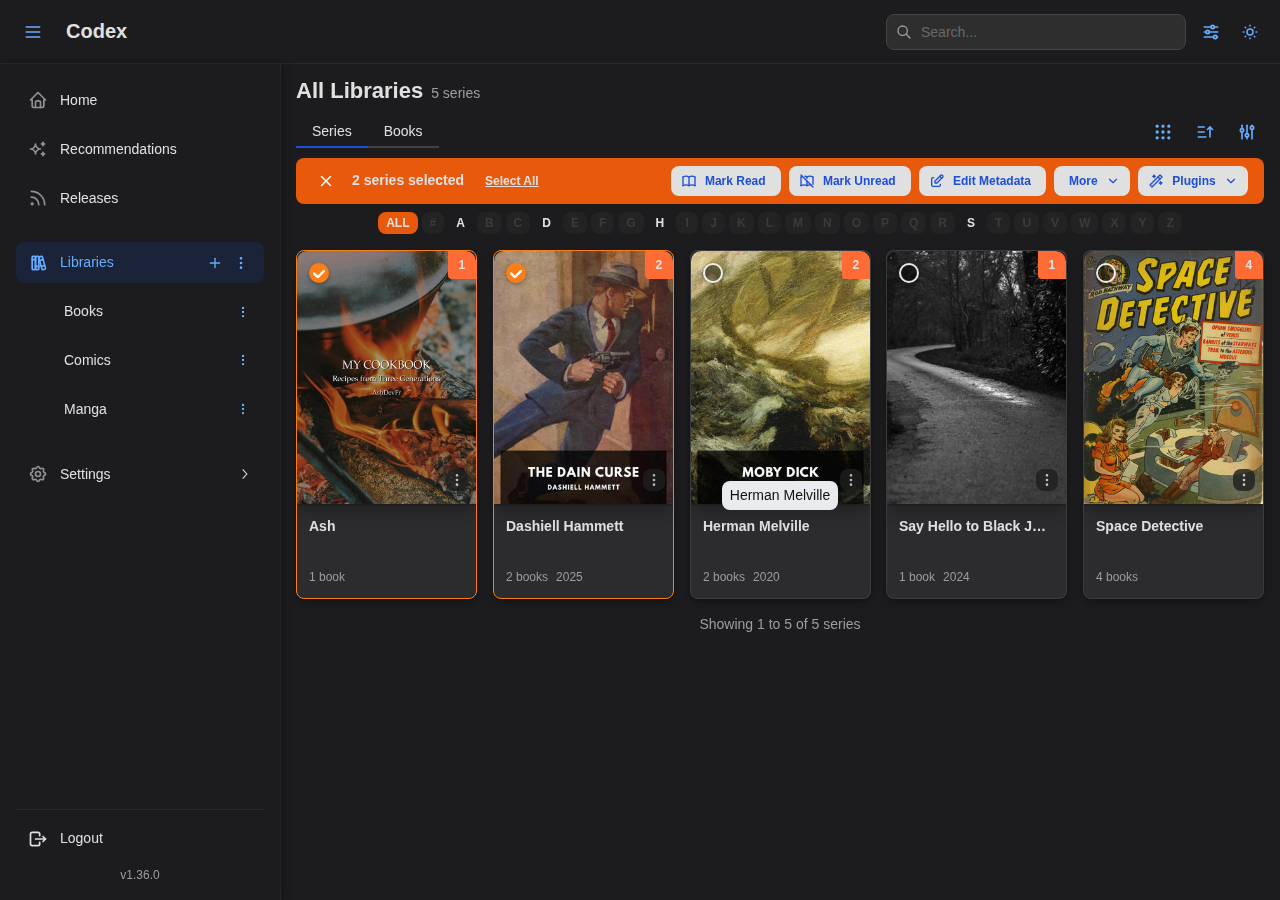
It exposes:
- Edit metadata: bulk metadata editor (see below).
- Mark as read / unread: fan out reading-state changes across every selected series.
- Delete: soft-delete every selected series.
- Cancel / Clear: exit selection mode.
The toolbar shows the running count and the libraries the selection spans.
Bulk metadata edit
The bulk editor has the same tabs as the per-series editor, but every field operates as a patch: only fields you explicitly change get written, every other field is left alone on each series.
General tab
Cross-cutting fields like publisher, status, year, language, and reading direction.
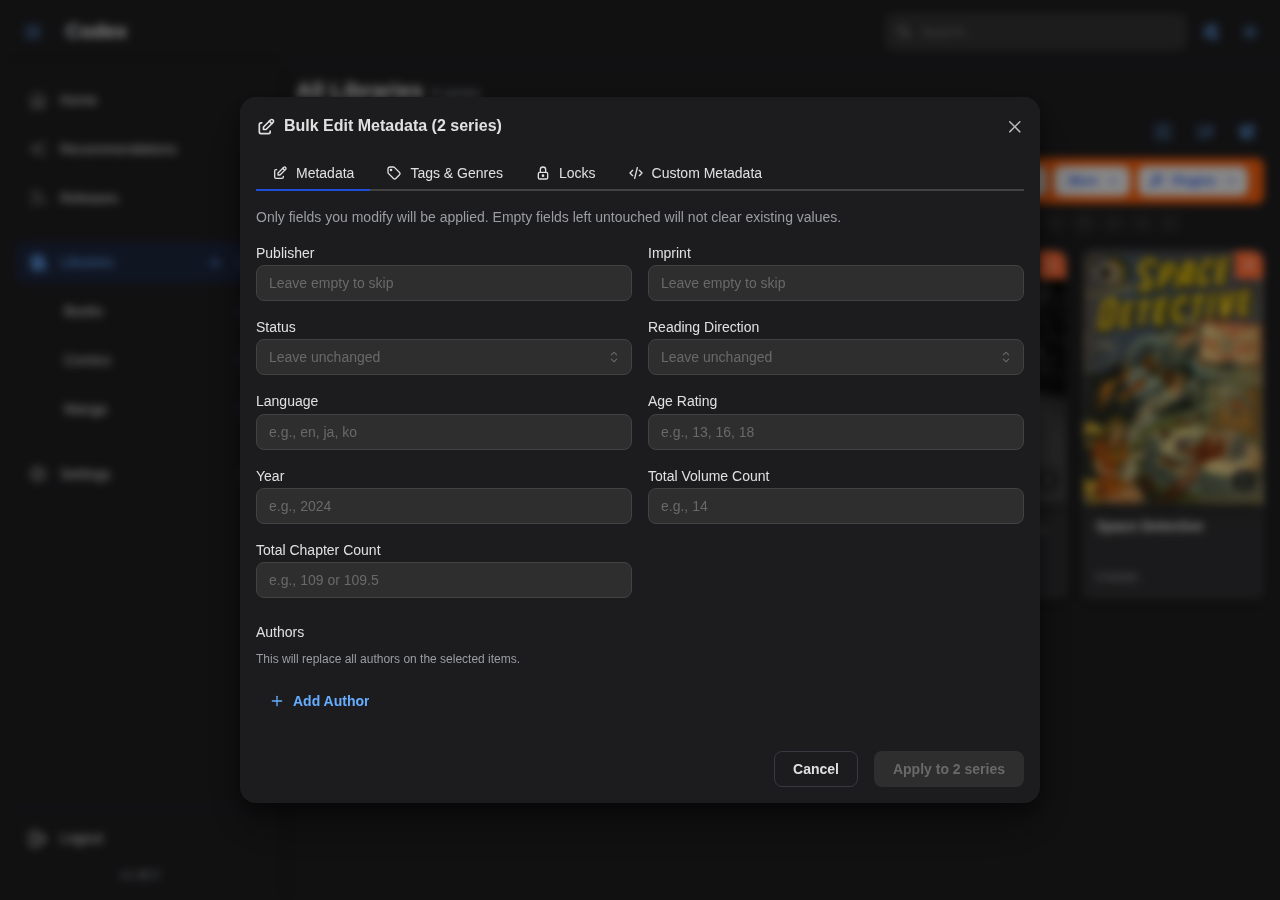
A field with a mixed value (different values across the selection) shows a placeholder rather than blanking the entries. Editing it sets the field to your value across the entire selection.
Tags tab
Tag and genre operations are explicit add / remove rather than overwrite, which is what you almost always want when the selection has mixed taxonomies.
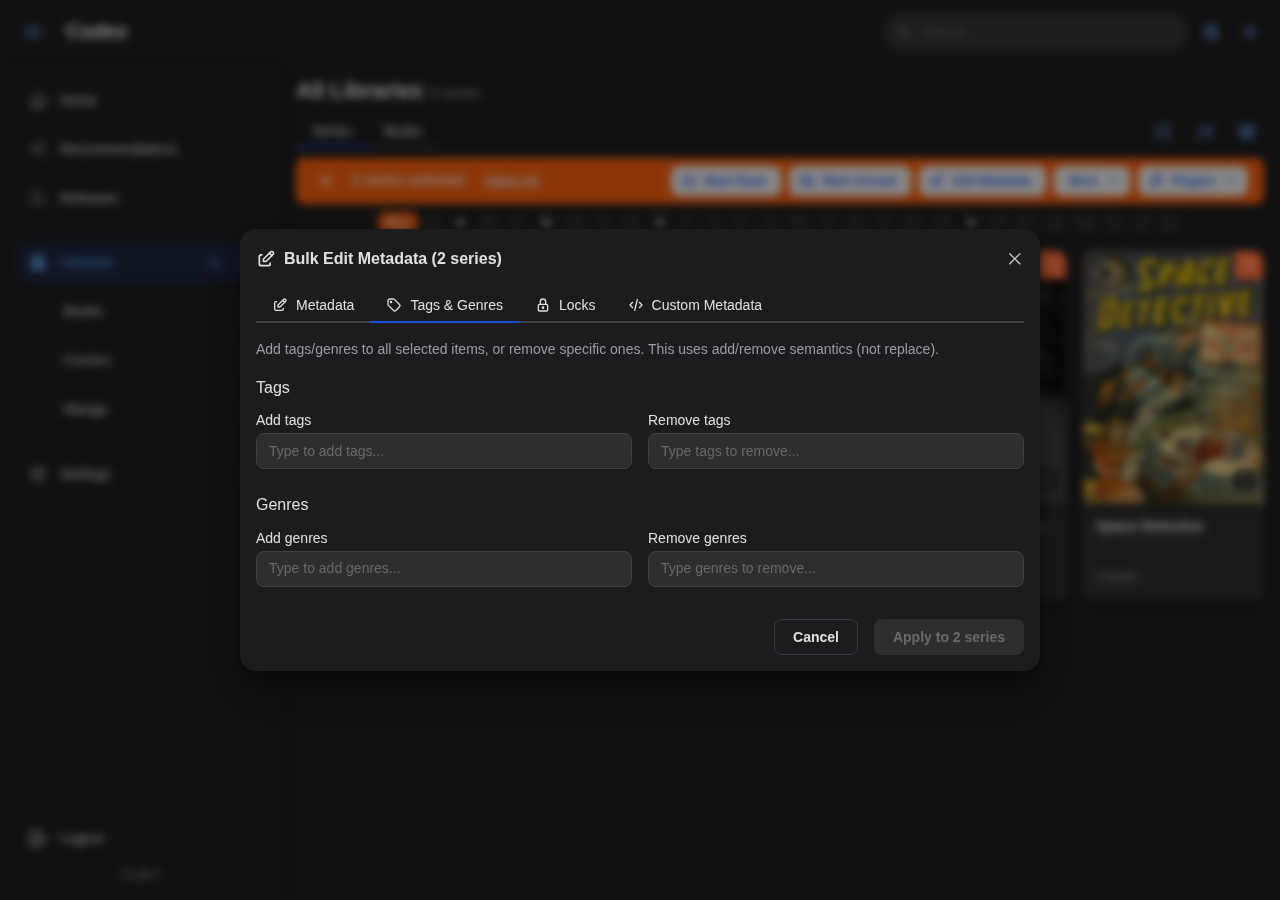
- Add tags: appends to each series' existing tag list (deduped).
- Remove tags: removes the named tags from any series that has them.
- Replace: only available when explicitly opted in; writes the exact list to every series.
The same model applies to genres.
Custom metadata tab
Apply a custom-metadata template (or manual key/value pairs) across the selection.
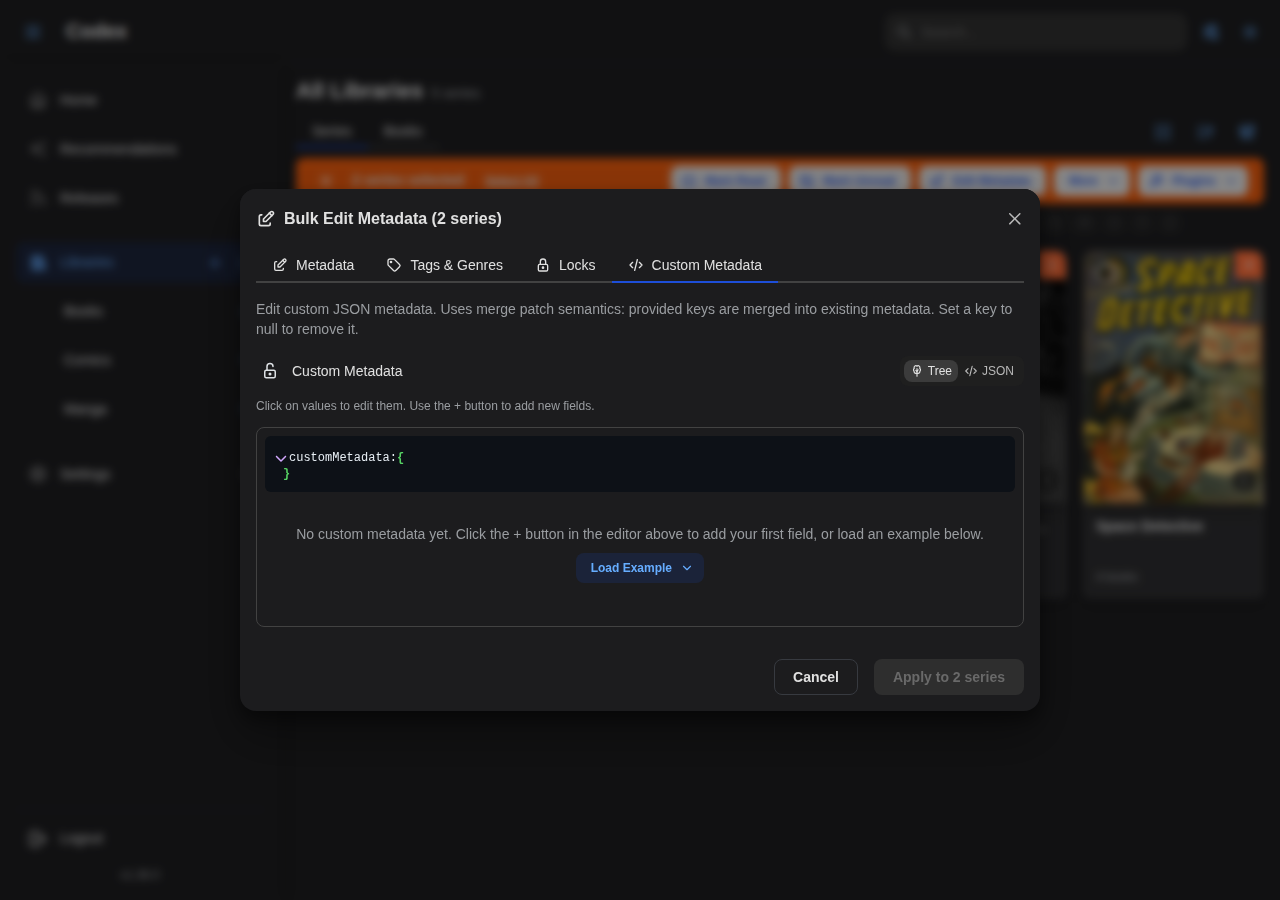
Unset values are treated as "no change" rather than "clear". To explicitly clear a value, set it to an empty value per template field.
Locks and bulk edits
Locks are honored on bulk edits, the same as per-series edits. A locked field on a series is never overwritten, even by an explicit bulk write. The save dialog reports how many fields were skipped due to locks so you can audit afterward.
Related guides
- Custom Metadata: defining templates that surface in the Custom tab.
- Series Metadata: the underlying data model.
- Library Jobs: scheduled metadata refreshes against a plugin.
- Plugins: provider plugins that feed the Fetch metadata submenu.