Data Exports
Codex can export your library catalog (series, books, or both) to a downloadable file. Use this for backups, offline analysis, sharing snapshots, or feeding the data into another tool.
Exports run as background jobs and are stored on the server until they expire. They are user-scoped: every user sees only their own exports.
Where to find it
Open Settings → Data Exports (or navigate to /settings/exports).
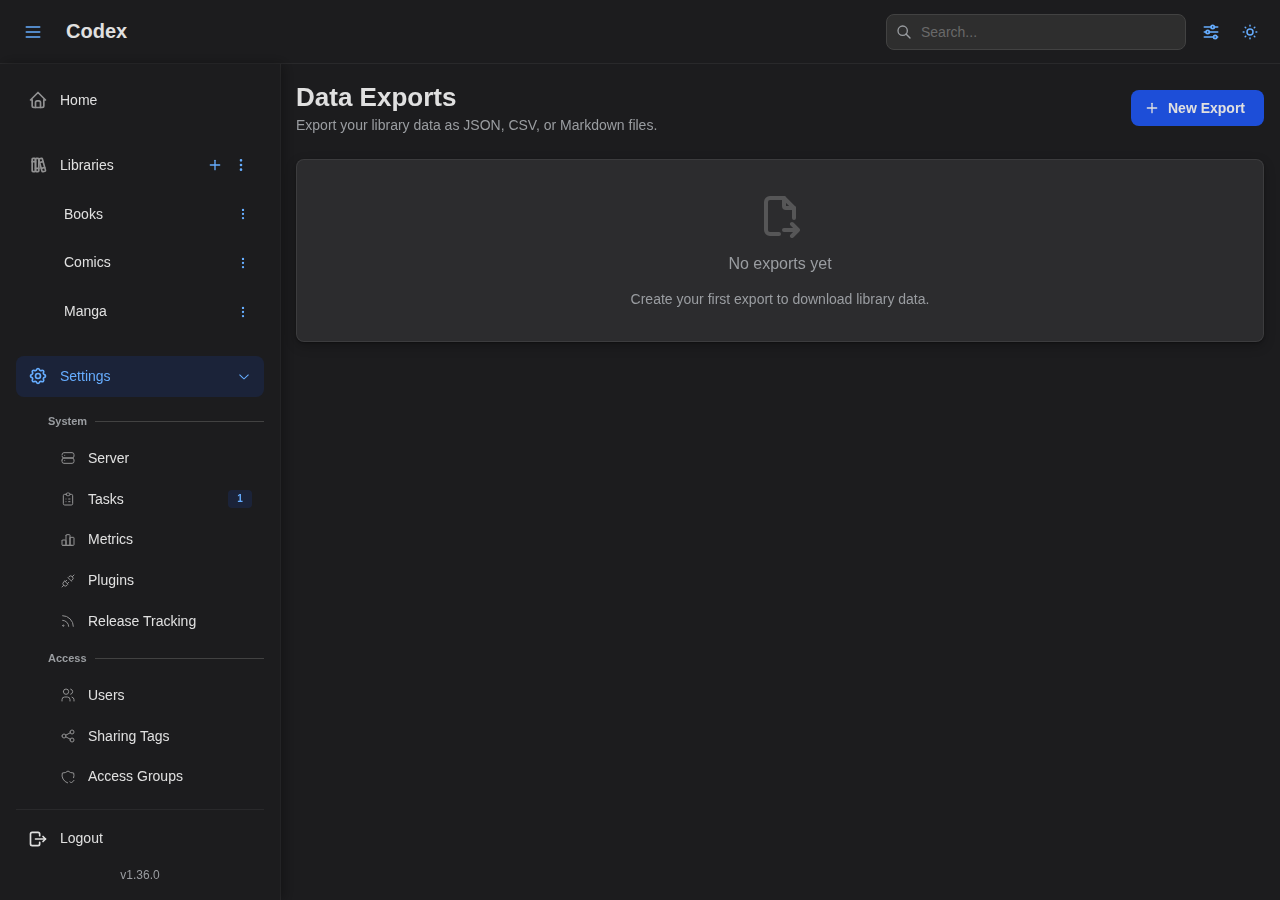
The page has two states:
- Empty: no exports yet. Click New Export to create one.
- Populated: a table of past and in-flight exports with download / delete actions.
Creating an export
Click New Export. The modal walks you through:
- Export type
- Series: one row per series, with the fields you select.
- Books: one row per book, with file-level fields.
- Both: series rows and book rows in the same archive (JSON or Markdown only; CSV doesn't support multiple sheets).
- Format
- JSON: structured output, suitable for scripts. The default.
- CSV: flat tabular output. Good for spreadsheets, but only available for single-sheet exports (Series or Books, not Both).
- Markdown: human-readable output, with one section per series/book. Useful for reading-list snapshots.
- Libraries: pick one or more libraries to scope the export. At least one is required.
- Fields: choose which series/book fields to include. The catalog is grouped (Identity, Metadata, Counts & Progress, Ratings; Identity, File Info, Metadata, Progress for books). Convenience presets:
- Select all: every available field except the always-included anchor field.
- LLM preset: a curated set tuned for feeding the export into a language model.
- Clear: drop the selection back to just the anchor field.
The anchor field (Series Name for series, Book Name for books) is always included, regardless of selection.
Submit. The job is queued and the modal closes; the new row appears in the table with status pending, transitioning to running and then completed.
Tracking exports
The exports table carries one row per export job:
| Column | What it shows |
|---|---|
| Created | Submission timestamp. |
| Type | series, books, or both. |
| Format | JSON, CSV, or MD. |
| Status | pending, running, completed, failed, or cancelled. Hover a failed badge for the error message. |
| Libraries | Library names included in the export, with field-list previews on hover. |
| Rows | Number of records in the output (after completion). |
| Size | File size on disk. |
| Expires | Date the file is auto-deleted from the server. |
| Actions | Download (when completed) and Delete. |
Downloading
Click the download icon on a completed row. The browser receives the file with a sensible name (codex-{type}-{libraries}-{timestamp}.{ext}) so you can drop it directly into your filesystem.
Lifetime and limits
- Exports expire automatically after a server-configured TTL (default: 7 days). Re-create the export if you need a fresh snapshot.
- The server enforces a per-user max concurrent exports limit (configurable via
exports.max_concurrent_per_user, default 3). Submitting a fourth job while three are already running returns an error; wait for one to complete or cancel it. - Disk usage shows up in Settings → Plugin storage (exports are written under the host's storage area). Use the delete action to reclaim space sooner.
Worked examples
"Send my reading list to ChatGPT"
Create a Series export, JSON format, all libraries, LLM preset fields. The result is a JSON array of every series with a curated set of metadata (title, year, status, summary, ratings) and no internal IDs or file paths. Drop it into your model of choice.
"Backup my catalog"
Create a Both export, JSON format, all libraries, Select all fields. The output is a complete dump of series and book metadata that can be diffed across runs.
"Share what I'm reading"
Create a Series export, Markdown format, the relevant library, and pick the Metadata + Counts & Progress field groups. The output is a single .md file with one section per series, suitable for pasting into a wiki or note-taking app.
"Spreadsheet of book file sizes"
Create a Books export, CSV format, pick the Identity and File Info field groups. Open the result in your spreadsheet program; sort by file_size to find your fattest CBZs.
Permissions and privacy
- Exports run with the requesting user's permissions. Series in libraries the user can't access aren't included.
- Sharing-tag restrictions are honored: a user with read access via a sharing tag exports only the series they can see.
- The download endpoint requires the same auth as the rest of the API. Don't paste raw download URLs into chat clients; re-issue a download via the UI when you need to share.
API access
Every operation in the UI is also available on the API:
POST /api/v1/user/exports/series: create an export job.GET /api/v1/user/exports/series: list your exports.GET /api/v1/user/exports/series/fields: fetch the field catalog (groups, presets).GET /api/v1/user/exports/series/{id}: get one export's status.GET /api/v1/user/exports/series/{id}/download: download the completed file.DELETE /api/v1/user/exports/series/{id}: delete an export and its file.
See the API reference for request/response shapes.