Reader Settings
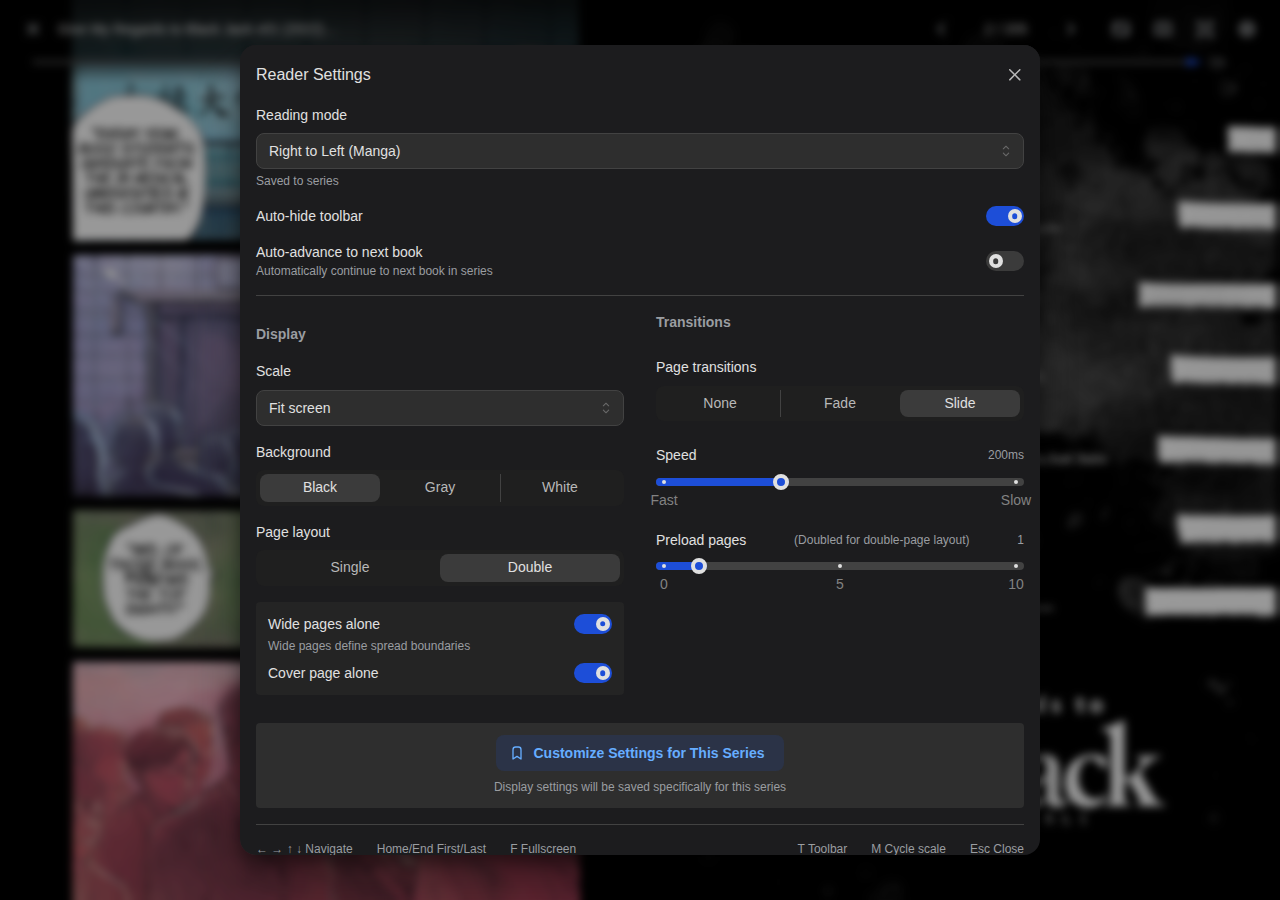
Codex provides extensive customization options for reading comics, manga, EPUBs, and PDFs. Settings are persisted locally in your browser and can be customized per-series for comics.
Comic Reader
The comic reader supports CBZ, CBR, and image-based formats with powerful display options.

Reading Modes
| Mode | Description | Best For |
|---|---|---|
| Left to Right | Standard Western reading order | Comics, graphic novels |
| Right to Left | Japanese reading order | Manga |
| Vertical | Top-to-bottom page navigation | Vertical scrolling preference |
| Webtoon | Continuous vertical scroll | Korean webtoons, long-strip comics |
Display Settings
Scale Options
| Option | Description |
|---|---|
| Fit screen | Scale page to fit entirely within viewport |
| Fit width | Scale to viewport width (may require scrolling) |
| Fit width (shrink only) | Only shrink large pages, don't enlarge small ones |
| Fit height | Scale to viewport height |
| Original | Display at original resolution |
In Webtoon mode, only "Fit width" and "Original" scale options are available for optimal vertical scrolling.
Background Colors
Choose from Black, Gray, or White backgrounds to match your reading environment and reduce eye strain.
Page Layout
- Single: One page at a time (default)
- Double: Two pages side-by-side (spread view)
Double-page mode includes additional options:
- Wide pages alone: Display landscape pages as single pages
- Start on odd page: Begin spreads on odd-numbered pages
Transitions (Paginated Mode)
| Transition | Description |
|---|---|
| None | Instant page changes |
| Fade | Smooth fade between pages |
| Slide | Slide animation in reading direction |
Transition speed can be adjusted from 50ms (fast) to 500ms (slow).
Scroll Options (Webtoon Mode)
- Side padding: Add horizontal padding (0-40%)
- Page gap: Space between pages (0-20px)
Per-Series Settings
When reading a series, you can customize display settings specifically for that series:
- Open Reader Settings while reading
- Click "Customize Settings for This Series"
- Adjust display settings (scale, background, layout)
- Settings are automatically saved for that series
To reset to global defaults, click "Reset to global" in the settings panel.
Keyboard Shortcuts
| Key | Action |
|---|---|
← → ↑ ↓ | Navigate pages / scroll |
Home / End | First / last page |
F | Toggle fullscreen |
T | Toggle toolbar |
M | Cycle scale modes |
Esc | Close reader |
EPUB Reader
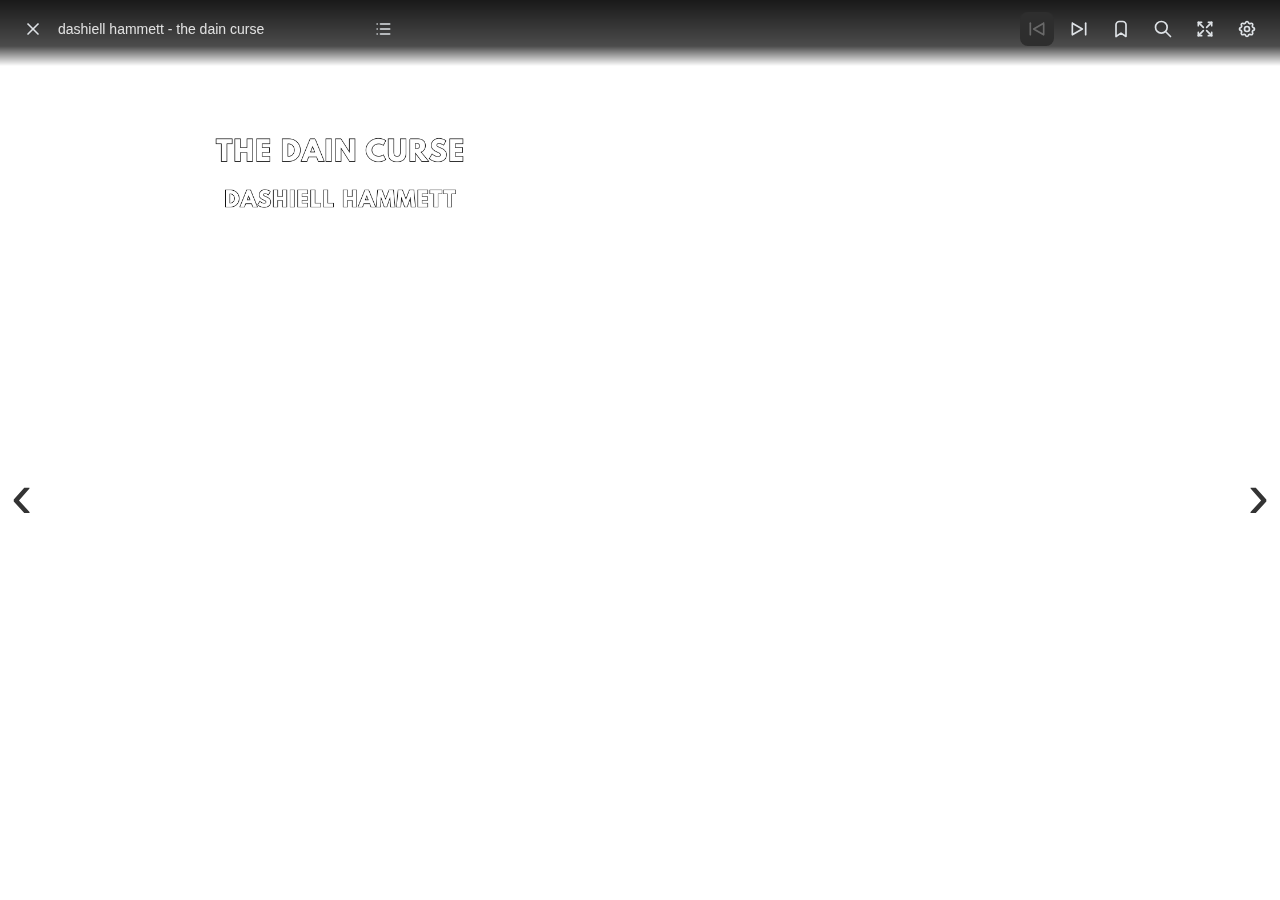
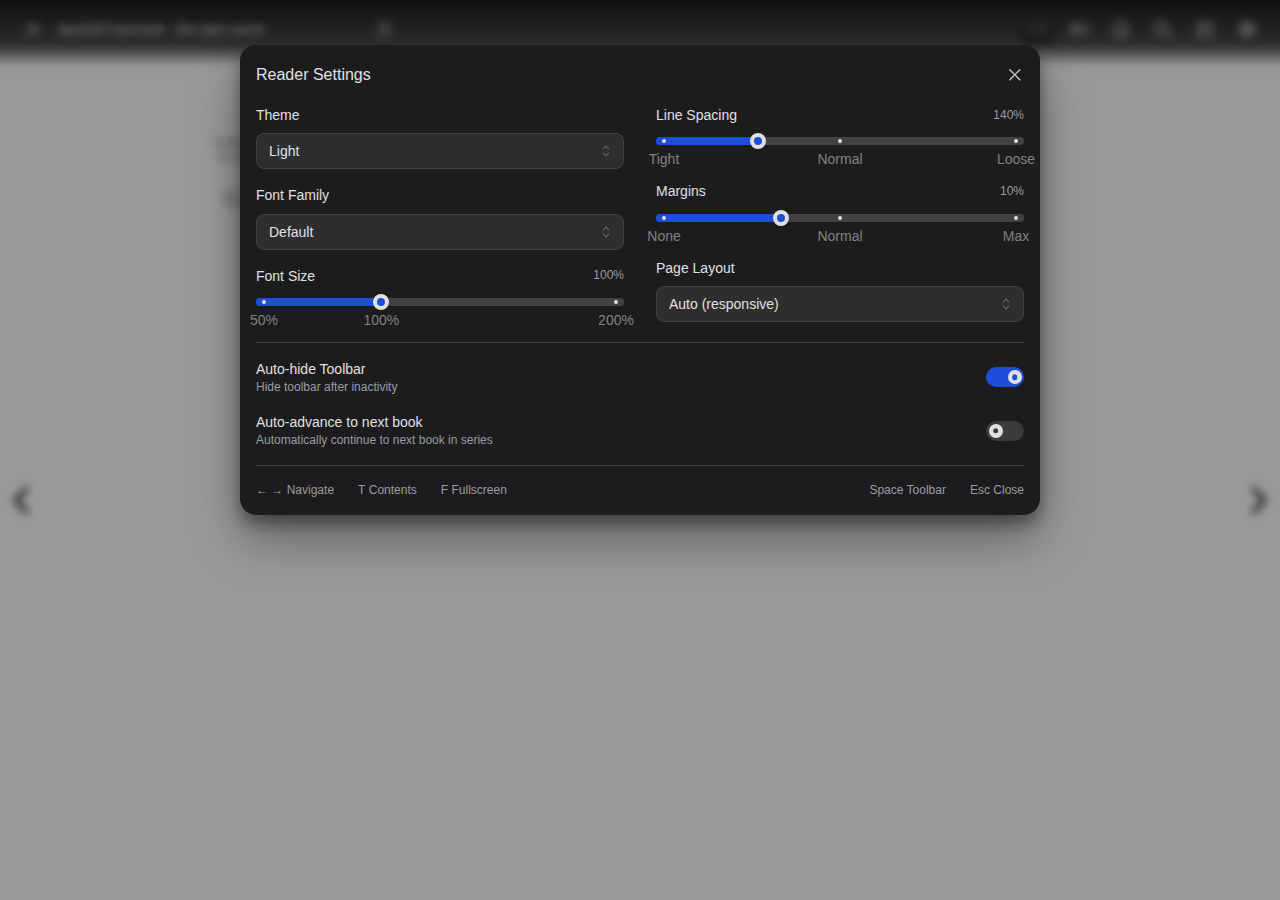
The EPUB reader provides a comfortable reading experience for ebooks with extensive typography controls.
Themes
Codex offers 10 reading themes:
Light Themes:
- Light - Clean white background
- Paper - Warm off-white (easier on eyes)
- Sepia - Classic sepia tone
- Rose - Soft pink tint
- Mint - Light green tint
Dark Themes:
- Dark - Standard dark mode
- Slate - Blue-gray dark theme
- Night - Pure black (OLED-friendly)
- Ocean - Deep blue dark theme
- Forest - Dark green theme
Typography
Font Families
| Font | Description |
|---|---|
| Default | Publisher's chosen font |
| Serif (Georgia) | Traditional book-style font |
| Sans-serif (Helvetica) | Modern, clean font |
| Monospace (Courier) | Fixed-width font |
| Dyslexic-friendly | OpenDyslexic font for improved readability |
Font Size
Adjustable from 50% to 200% of the default size.
Line Spacing
Control line height from "Tight" (100%) to "Loose" (250%) for comfortable reading.
Margins
Adjust page margins from 0% (edge-to-edge) to 30% (generous margins).
Navigation Features
- Table of Contents: Quick chapter navigation
- Bookmarks: Save and return to specific locations
- Search: Find text within the book
Keyboard Shortcuts
| Key | Action |
|---|---|
← → | Previous / next page |
T | Toggle table of contents |
F | Toggle fullscreen |
Space | Toggle toolbar |
Esc | Close reader |
PDF Reader
The PDF reader uses native PDF rendering for crisp text and full PDF feature support.
Zoom Levels
Quick Options:
- Fit Page - Entire page visible
- Fit Width - Scale to viewport width
- 100% - Original size
Additional Zoom:
- 50%, 75%, 125%, 150%, 200%
Page Spread Modes
| Mode | Description |
|---|---|
| Single | One page at a time |
| Double | Two pages side by side |
| Double (Odd) | Two pages, spreads start on odd pages |
Continuous Scroll
Enable vertical scrolling through all pages instead of paginated navigation.
Per-Book Preferences
Save PDF reader mode preferences for specific books that differ from your global settings.
Native PDF Features
- Text selection - Copy text from documents
- Search - Find text with Ctrl+F / Cmd+F
- Clickable links - External and internal links work
- Vector rendering - Sharp text at any zoom level
Keyboard Shortcuts
| Key | Action |
|---|---|
← → Space | Navigate pages |
Home / End | First / last page |
F | Toggle fullscreen |
Ctrl+F / Cmd+F | Search in document |
Esc | Close reader |
Global Settings
These settings apply across all reader types:
Auto-hide Toolbar
When enabled, the toolbar automatically hides after a period of inactivity. Move your mouse or tap the screen to reveal it.
Swipe to Turn Pages
On touch devices, drag a page sideways to turn it: the page follows your finger and snaps to the next or previous page when you release (based on how far you dragged or how fast you flicked). Reading direction is respected, so in right-to-left (manga) mode the gesture is mirrored, and double-page spreads move as a unit. Tap-zone navigation (tap the left/right edge) and the center-tap toolbar toggle keep working alongside it.
The gesture only applies to paged comic modes (single and double page); webtoon and continuous-scroll modes navigate by scrolling. While a page is zoomed in, a one-finger drag pans the page instead of turning it.
Swipe down anywhere on the page to exit the reader, a quick alternative to revealing the toolbar and pressing the close button. A deliberate downward fling (far enough, or a fast flick) is required, so it won't trigger on small vertical movements. Like turning pages, it's disabled while the page is zoomed or panned.
Enabled by default. Turn it off to use tap-only navigation.
Downscale Pages
Some comics are scanned at very high resolution (e.g. 3000+ px wide), which is far more than a phone or tablet can display. Downscale Pages asks the server to resize each page down to roughly your screen size before sending it, so you download less data and use less memory.
- Applies to comic archives (CBZ/CBR) only; EPUB and PDF are unaffected.
- AVIF pages are sent unchanged, because the server does not decode AVIF. A book whose pages are AVIF ignores this setting. See Supported Formats.
- It's a data/quality trade-off: pages are slightly softer, most noticeable if you pinch-zoom. It is not applied in the
originalfit mode, where native pixels are the point.
The server resizes each page on demand with no cache, so enabling this can noticeably slow page loading, especially with a large preload window. It saves bandwidth and memory; it does not make page turns smoother. Leave it off unless you specifically need to reduce data usage.
Disabled by default.
Pinch and Double-Tap to Zoom
On touch devices you can zoom into a comic page to inspect detail:
- Pinch with two fingers to zoom the page in and out. Only the page image zooms; the toolbar and the rest of the interface stay put.
- Double-tap the page to zoom in toward the point you tapped. Double-tap again (or pinch back) to return to fit.
- Drag with one finger while zoomed to pan around the page. Panning is bounded to the page edges.
- Zoom resets to fit when you turn the page, and a single tap while zoomed only toggles the toolbar (it won't turn the page out from under you).
Because the reader controls zoom itself, the browser's own pinch/double-tap zoom (which would scale the whole interface and, on iOS, could get stuck) is disabled while you're reading. Page zoom is part of the touch reader, so it works together with Swipe to Turn Pages (both are on by default). Zoom applies to paged comic modes (single and double page); the native PDF and EPUB readers have their own zoom and font controls.
To detect a double-tap, single taps are held for a fraction of a second, so tap-to-turn and the toolbar toggle feel slightly less immediate when zoom is active.
End-of-Book Transition
When you reach the end of a book in a series (comics and PDFs), a Next Chapter panel appears with the next book's cover and a Continue Reading button. In webtoon and continuous-scroll modes you scroll into it after the last page; in paginated modes it appears when you page past the last page. A matching Previous Chapter panel appears at the very beginning. Reaching the end panel also marks the current book as read.
Auto-advance to Next Book
When enabled, the Next Chapter panel starts a short countdown and then continues to the next book automatically, with a Cancel link if you'd rather stay. The countdown length is adjustable from 1 to 30 seconds (default 5) via the Auto-advance countdown slider that appears once auto-advance is turned on. When disabled, the panel waits for you to tap Continue Reading. Useful for binge-reading manga or comic series.
Preload Pages
Configure how many pages to preload ahead for smoother reading. Higher values use more memory but provide instant page turns.
- 0: No preloading (lowest memory)
- 1-5: Preload pages ahead (doubled for double-page layout)
Settings Persistence
| Setting Type | Storage | Scope |
|---|---|---|
| Global reader settings | Browser localStorage | Per-device |
| Per-series overrides | Browser localStorage | Per-device |
| Reading direction | Server database | Per-series, synced |
| Read progress | Server database | Per-user, synced |
Reader preferences are stored in your browser. If you use multiple devices, you'll need to configure settings on each one. Reading progress and reading direction are synced across devices.