Offline Reading
Codex can save individual books or whole series to your device so you can keep reading without a network connection: on a flight, on the train, or anywhere mobile data is patchy. Downloads live in your browser's storage, so each device manages its own offline library.
| Home dashboard at iPhone width | Series list at iPhone width |
|---|---|
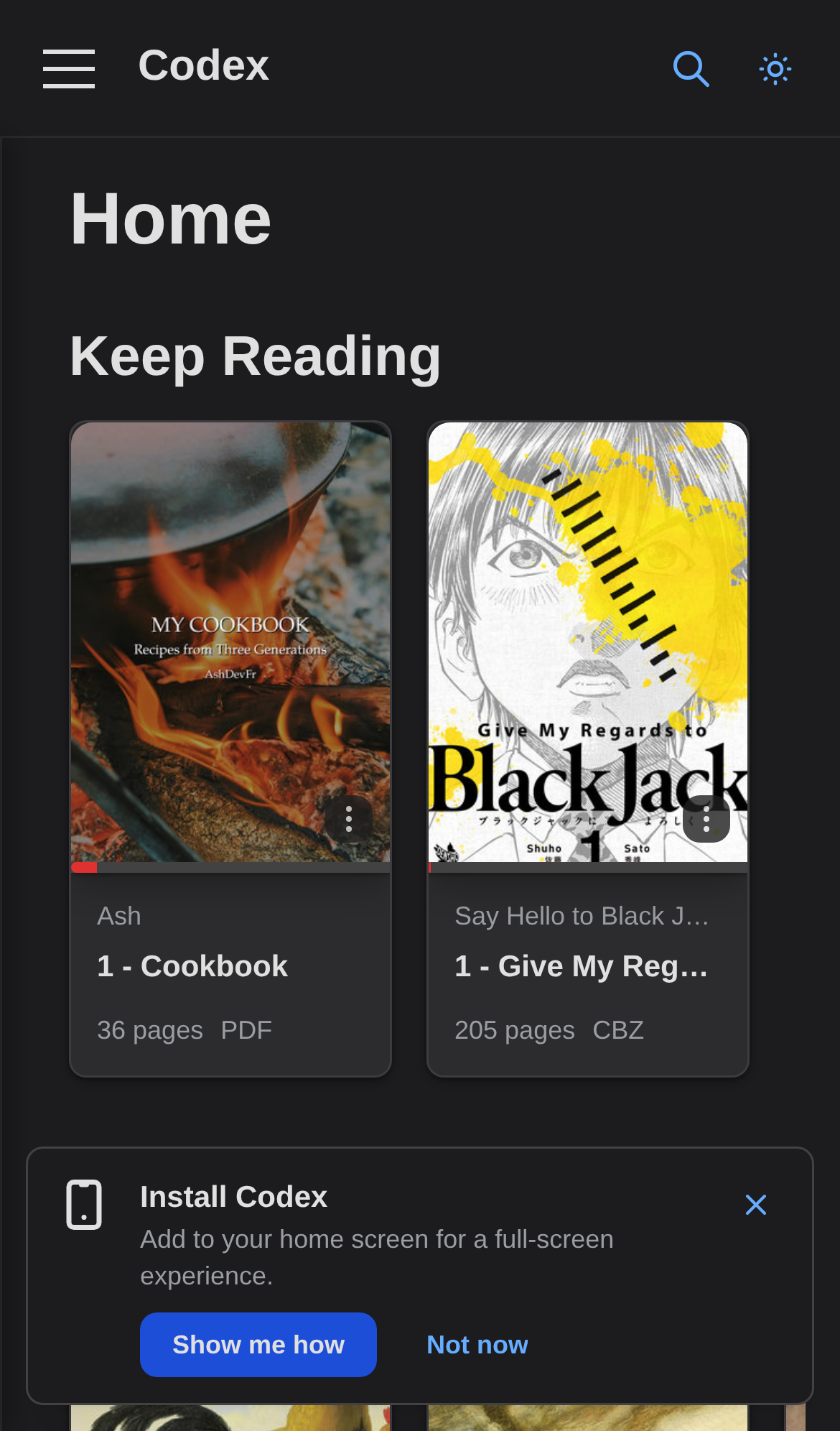 | 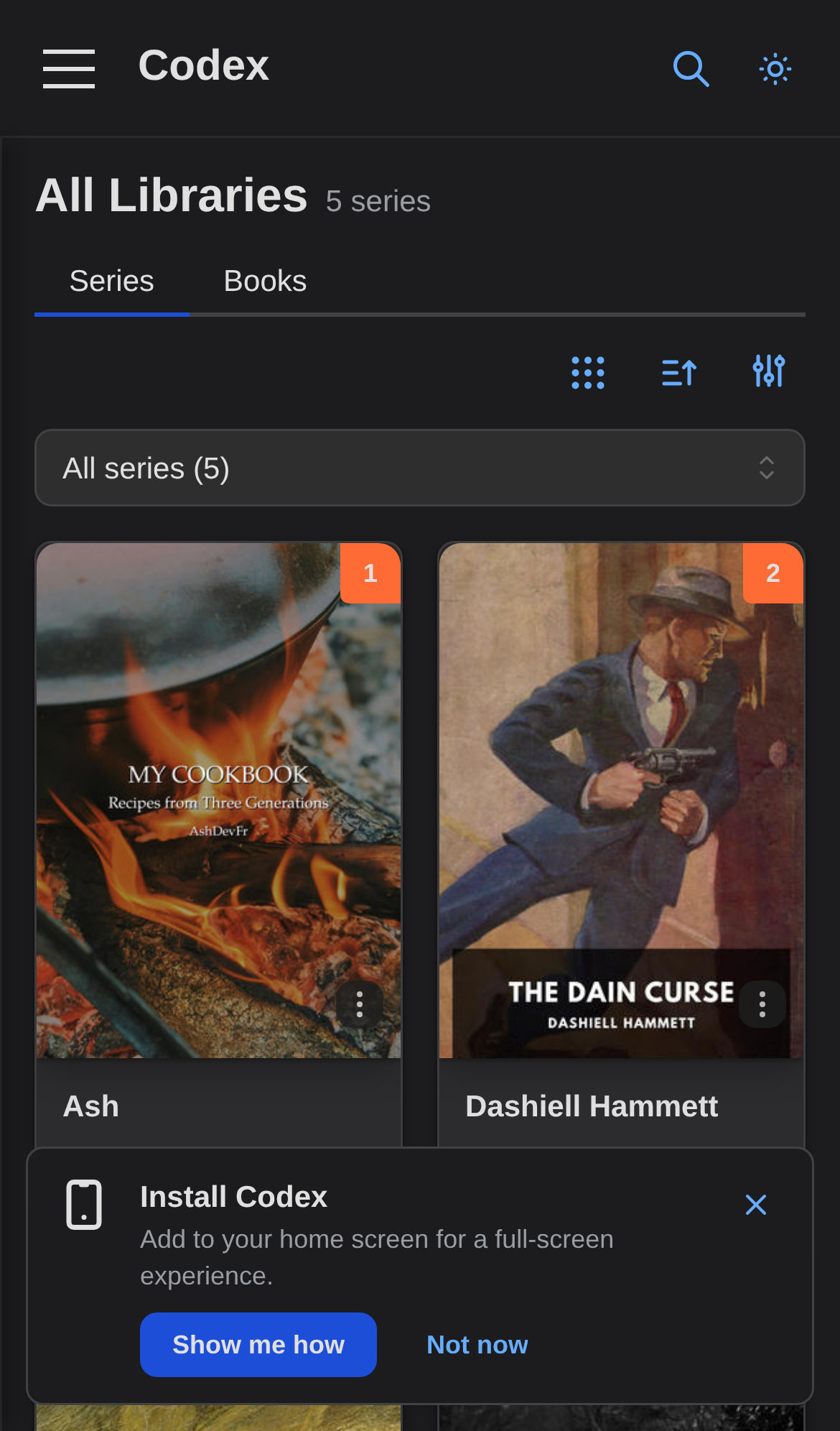 |
What can be downloaded
| Format | What gets saved | Notes |
|---|---|---|
| EPUB | Single book file | One request to /api/v1/books/{id}/file |
| Single book file | Same as EPUB | |
| CBZ | Every page, one at a time | The server-rendered images at the resolution your reader uses |
| CBR | Every page, one at a time | Same as CBZ |
Raw archive files (CBZ/CBR) are not cached as-is. Codex caches the server-rendered page images instead, so phones do not download a 50 MB archive when only ~5 MB of images are needed to read.
Saving a single book
On a book's detail page, tap the cloud-down icon in the action row:
- Cloud-down icon: not saved offline. Tap to start the download.
- Spinner ring: download in progress. Tap the red X next to it to cancel.
- Green cloud-check icon: saved. Tap to open a menu with Re-download or Remove offline copy.
The download runs in the foreground. You can keep using Codex in other tabs, but closing the tab pauses the download. Codex remembers what was already saved and resumes from the next page when you come back.
Saving a whole series
Open the series detail page and tap Download series. A modal lists every book with its format. Start downloading runs them one at a time so the network does not get flooded.
While the queue runs you can:
- Tap the red X next to any book to cancel that one. The other books keep going.
- Tap Cancel all at the top to stop everything that has not yet finished.
- Close the modal — the queue keeps running. A badge on the Download series button shows aggregate progress (e.g.
2/12).
Before the queue starts, Codex estimates the total size and compares it to the available storage on your device. If the queue would use more than 90% of your quota it is refused with a clear message and no books are downloaded. Free up storage from Settings → Offline downloads, or remove a few books you have already read, then try again.
Managing what is saved
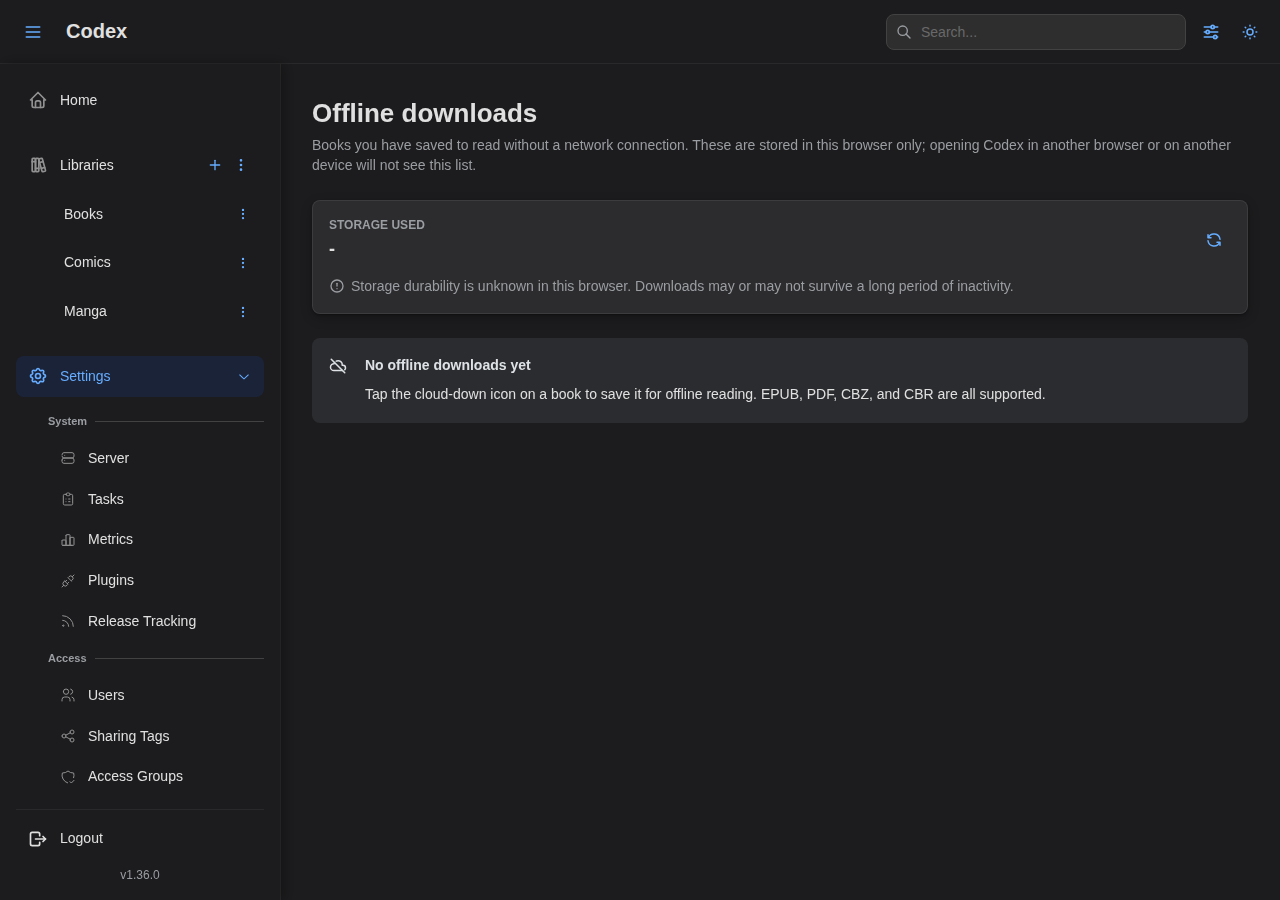
Settings → Offline downloads lists every book currently on this device with its size and the date it was saved. From there you can:
- See a meter for Storage used / available based on the browser's quota estimate.
- See a Storage durability indicator that tells you whether the browser has marked your data as persistent.
- Remove individual downloads (frees up storage immediately).
- Clear all downloads in one action.
Removing a book from this list also removes its cached pages, so the next time you open it offline you will see a network error instead of stale content.
Reading progress while offline
Page turns and "mark as read" actions made offline are not lost. Codex queues them in a small outbox and replays them when your browser comes back online — either when the operating system fires the online event or the next time the tab becomes visible. Conflict resolution is last-write-wins by client timestamp, so the most recent progress for each book ends up on the server.
You do not have to do anything special: just keep reading. The outbox is invisible unless you go looking for it.
A book you finish offline is recorded in your read history once the outbox drains, the same as one finished online.
How durable are these downloads?
It depends on your browser:
| Surface | Durability |
|---|---|
| Desktop Chrome / Firefox / Edge | Very durable. The browser only evicts under severe storage pressure. |
| Android Chrome (tab) | Durable for as long as Codex is actively used. |
| Installed PWA (any platform) | Most durable. The browser treats installed PWAs as application data. |
| iOS Safari (tab) | The browser may clear offline storage after about a week of inactivity, even if you call it persistent. The first time you download something from an iOS Safari tab, Codex shows a soft nudge that explains this and suggests adding Codex to your Home Screen. |
If you read on an iPhone or iPad regularly, install Codex to your Home Screen for the best offline experience. From the Settings → Offline downloads page you can also see at a glance whether your browser has marked storage as persistent.
Install Codex on your phone
On any device, the Install Codex prompt that appears in the corner of the screen will add Codex to your home screen / app launcher.
For iOS Safari specifically:
- Tap the Share icon in the bottom toolbar.
- Scroll down and choose Add to Home Screen.
- Confirm the name and tap Add.
Once installed, Codex opens in a full-screen window without the Safari address bar, and offline downloads survive ordinary periods of inactivity.
Troubleshooting
A book I downloaded says "could not load" when I open it offline. The book may have been removed from the offline list (Settings → Offline downloads) or the browser may have evicted it under storage pressure. Re-download it.
The Download series button says my storage is full but Settings → Offline downloads shows much less than 90% used. The storage quota covers everything the browser stores for Codex, not only offline downloads (caches, IndexedDB, application data all count). Try Clear all downloads and re-download only what you need.
My reading progress did not sync after I reconnected.
The outbox drains on the online event and on tab-visibility changes. Switch to another tab and back, or refresh the page. If progress still does not appear on the server, the original write may have failed at a layer above the outbox; check your browser's network panel for the most recent PUT /api/v1/books/.../read-progress response.
The series download was interrupted when I closed my laptop. Foreground downloads stop when the tab closes. Re-open the series and tap Download series again — books that completed are still saved and the queue will only re-fetch the rest.